
How to read your dashboard
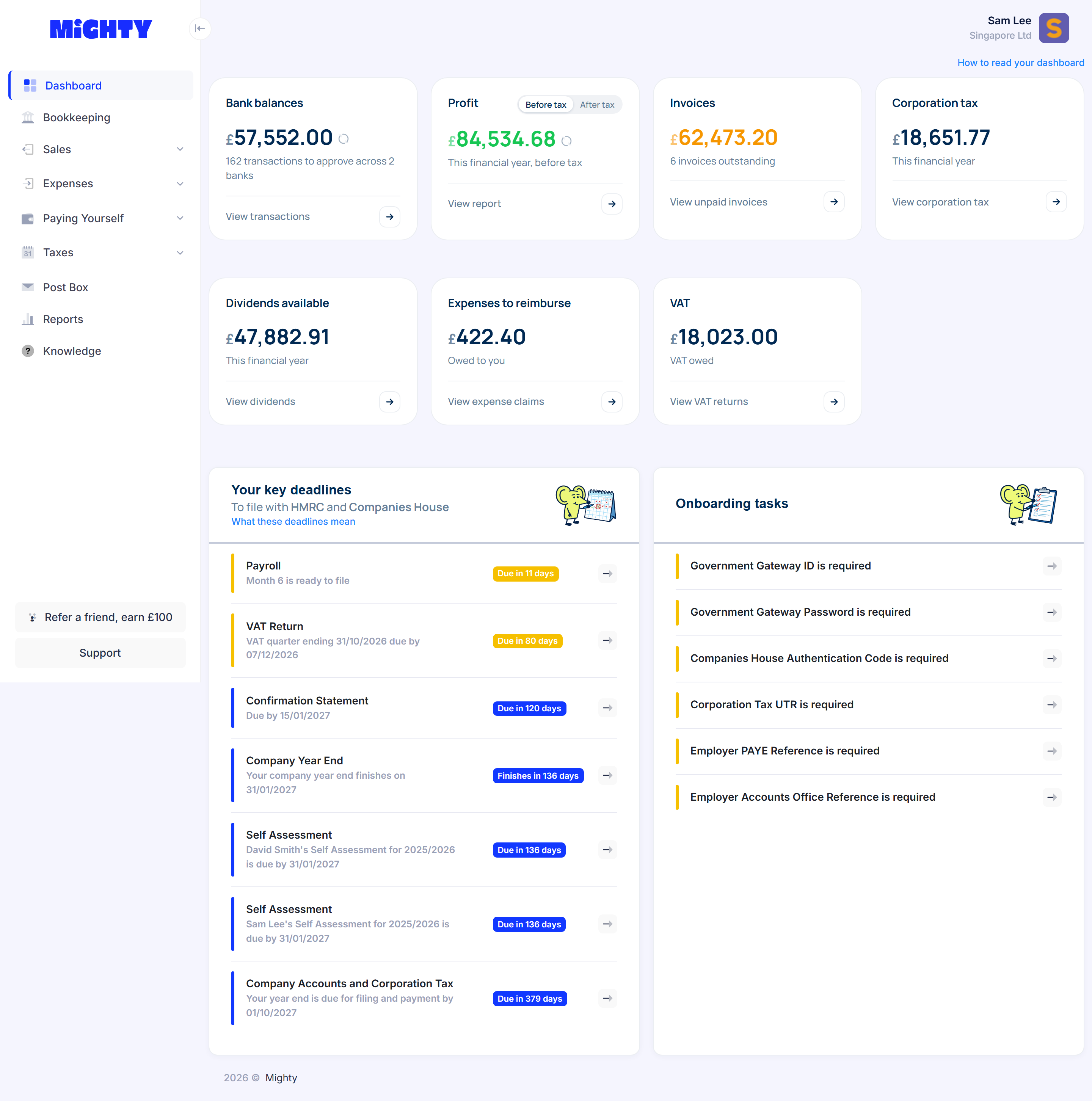
Your dashboard is the first screen you see when you sign in. It answers the questions most business owners ask every week: how much money is in the bank, how much profit the company has made, who owes you money, and how much tax to set aside. This guide explains each figure in plain words, so you know what it means and what to do about it.
What each tile tells you
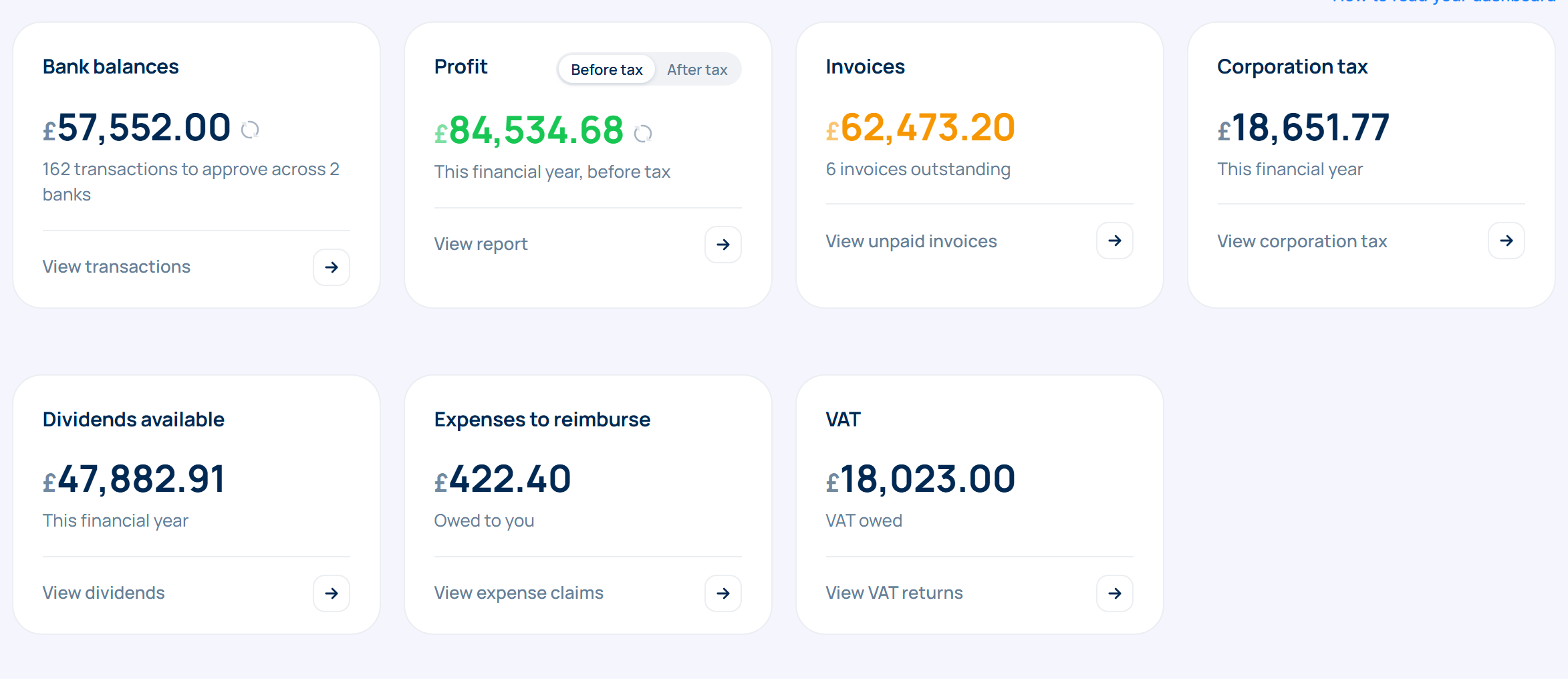
Each box at the top of the dashboard is a tile. Every tile shows 1 figure, a short note under it, and a link at the bottom. Select anywhere on a tile to open the screen behind it.
| Tile | What it shows | Where it takes you |
|---|---|---|
| Bank balance | The money in your business bank accounts, added together. If you have more than 1 account the tile is called Bank balances. The note under the figure tells you how many bank transactions are waiting for you to check and approve. | View transactions opens Bookkeeping, where you approve them. |
| Profit | What the company has earned this financial year (the 12 months your company's accounts cover) after taking away its costs. Green means a profit. Red means a loss. | View report opens your profit and loss report, which lists the income and costs behind the figure. |
| Invoices | The total your customers still owe you on invoices you have approved. The note shows how many invoices that is, and how many you have started but not finished. The figure turns amber when at least 1 invoice is past its due date. | View unpaid invoices opens your invoice list, showing only the unpaid ones. |
| Corporation tax | Our estimate of the corporation tax (the tax a limited company pays on its profit) for this financial year so far. You pay it after the year ends, so this is the amount to keep aside. | View corporation tax opens your accounting periods, which show how we worked it out. |
| Dividends available | The most the company can pay out as dividends (money a company pays its shareholders from profit it has already made, after tax). If more has been paid out than the company had, the tile is called Dividends Overdrawn and the figure is red. | View dividends opens your list of dividends. |
| Expenses to reimburse | Business costs you paid for with your own money that the company has not paid back to you yet. If the company has paid you back too much, the tile is called Expenses over reimbursed and the note says Owed to the company. | View expense claims opens your expense claims. |
| VAT | The VAT (the tax you add to your prices and pass on to HMRC, the UK tax authority) you owe so far. That is the VAT you have charged customers, minus the VAT you can claim back on your costs. If HMRC owes you, the note says VAT refund. | Your VAT returns. When we know the date your next return is due, the link shows it. |
| PAYE & NI | The income tax and National Insurance you have taken from wages through payroll and still need to pay to HMRC. | View payroll opens your payroll. |
A figure of £0.00 is shown in grey, so the numbers that need your attention stand out.
Tiles you might not see
We only show tiles that apply to your company:
- VAT appears only if your company is registered for VAT.
- PAYE & NI appears only after you add your employer PAYE reference (the number HMRC gives a company when it starts paying wages).
Keeping the figures up to date
Mighty updates the dashboard for you. When you open it, we fetch new bank transactions if we have not checked your bank in the last 15 minutes. Once a day we also work out your profit, corporation tax and dividends again. While that happens, a tile shows Refreshing for a few seconds.
You can also do this yourself. The round arrow on the Bank balance tile fetches your latest bank transactions. The round arrow on the Profit tile works out Profit, Corporation tax and Dividends available again. Use it after you have approved a batch of transactions and want to see the effect.
Profit, corporation tax and dividends are only as accurate as your bookkeeping. If the Bank balance tile says you have transactions to approve, approve those first. Until then, those 3 figures are missing some of your income and costs.
Profit before or after tax
The Profit tile can show 2 figures. Before tax is your profit before corporation tax. After tax takes away the corporation tax estimate, so it shows what is left for the company to keep or pay out.
Neither is more correct. Use Before tax to see how the business is doing. Use After tax when you are thinking about what you can take out. Mighty remembers your choice for each company.
Your key deadlines
Under the tiles, Your key deadlines lists what you need to send or pay to HMRC and Companies House (the government register of UK companies), with the closest date first. We explain every deadline in What your key deadlines mean.
Onboarding tasks and Ways to save tax
The card on the right changes as you get set up. While Mighty still needs details from you, it shows Onboarding tasks. Each row is 1 missing detail, such as a tax reference we need before we can send anything to HMRC for you. Select a row to add it.
When every task is done, the card changes to Ways to save tax. It shows ideas that fit your company. Select Read more on any idea to see how it works.
Your dashboard on a phone
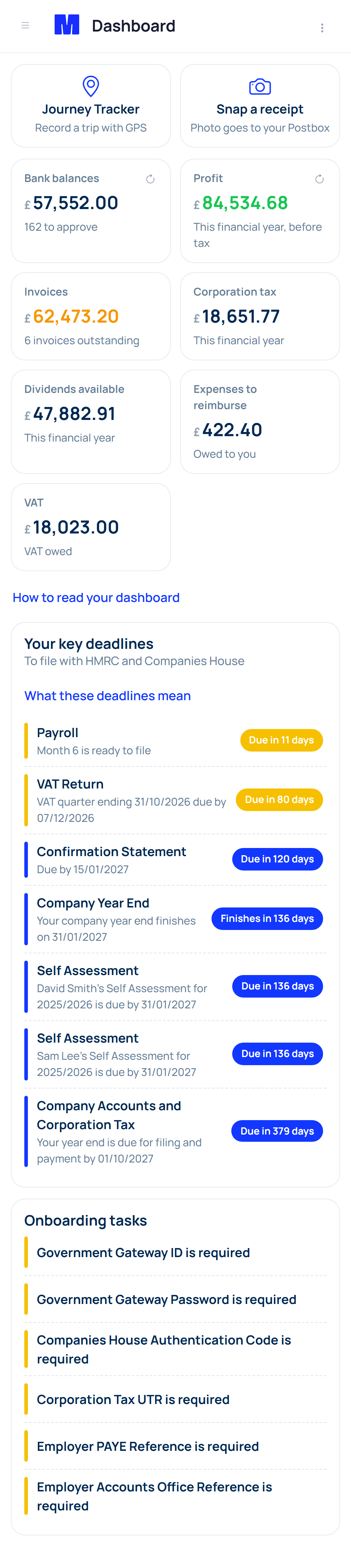
On a phone you see the same figures and deadlines in a layout made for a small screen. There are 2 extra buttons at the top:
- Snap a receipt opens your camera. The photo goes to your Post Box, ready to turn into an expense. See How to send receipts and bills to your Post Box.
- Journey Tracker records a business trip using your phone's location. See How to track a journey with your phone.
To switch between profit before and after tax on a phone, select the 3 dots at the top right of the screen.
Common questions
Why is my bank balance different from my banking app?
For a bank account connected to Mighty, we show the balance from the last time we checked your bank. Select the round arrow on the tile to check again. Payments your bank still shows as pending can also cause a small difference for a day or two.
For a bank account that is not connected, we cannot see your bank. We work the balance out from the transactions you have added to Mighty, so it is only right when those are up to date.
Why does my Dividends tile say Overdrawn?
It means the company has paid out more in dividends than the profit it had available. This needs sorting out, because a company is not allowed to pay dividends it cannot cover. Check first that your bookkeeping is up to date, because missing income can cause this. If the tile still says Dividends Overdrawn, speak to your accountant.
If the tile shows £0.00 with the note Reserves negative (accumulated losses), that is different. It means the company has made losses overall, so there is nothing to pay out yet. To plan what you can take, see How to plan how much dividend to take.
Why is my Invoices figure amber?
At least 1 of your invoices is past its due date. Select the tile to see which ones. It is fine to send an invoice again as a reminder.
The corporation tax figure looks too high or too low. Is it wrong?
It is an estimate based on your bookkeeping so far this year. It goes up and down as you approve transactions. It is most useful once your bookkeeping is up to date, so approve any waiting bank transactions, then select the round arrow on the Profit tile.


