

When you first register for VAT, you may have a period where you have applied to be VAT registered from a certain date, but this date may pass/have passed, and you're still yet to receive a VAT number by HMRC. This is a very common scenario as it can take up to 40 working days for HMRC to issue your VAT number.
When you find yourself in this scenario - the likely question you'll have is: how do I invoice my clients during this period? We'll answer this in this article.
Including an Uplift for VAT & Sending an Updated Invoice Once Your VAT Number Is Received:
The best option, if your client allows, is to simply increase what you are invoicing in line with the VAT that you would have charged. So for example, if you need to invoice £1,000, you would invoice your client £1,200, but also inform them the reason for this increase is due to your VAT registration being in progress. Then, once your VAT number is received, you can re-issue the invoice, with the VAT number on it and a line for VAT.
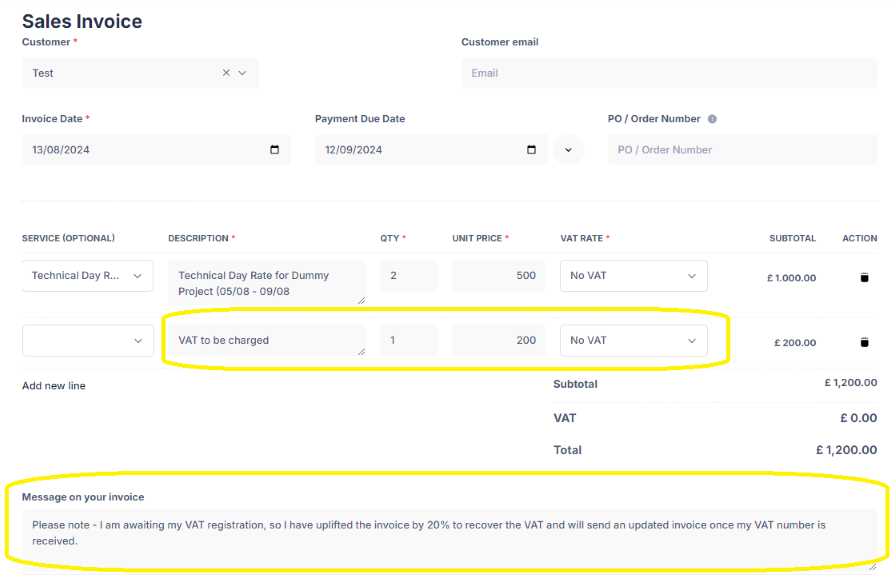
You would do this in Mighty by first raising an invoice for the amount that would be charged inclusive of VAT. It's important to not actually charge VAT, as shown in the screenshot below, so the VAT rate selected can be 'No VAT', but you can add in a second line for the VAT that will be charged (as shown in the first yellow border). You can use the message box at the bottom to confirm the reasoning for this (as shown in the second yellow border), but it would be wise to get agreement from your client on this beforehand:
Then, once your VAT number is received, you can first add this into Mighty, by navigating to Settings > HMRC & Taxes, and then adding in the information into the 3 boxes below:
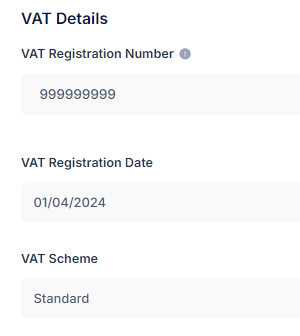
This will ensure your VAT number will now appear on your invoices. However, you can now also go back and update the previous invoice(s) that you've sent without your VAT number.
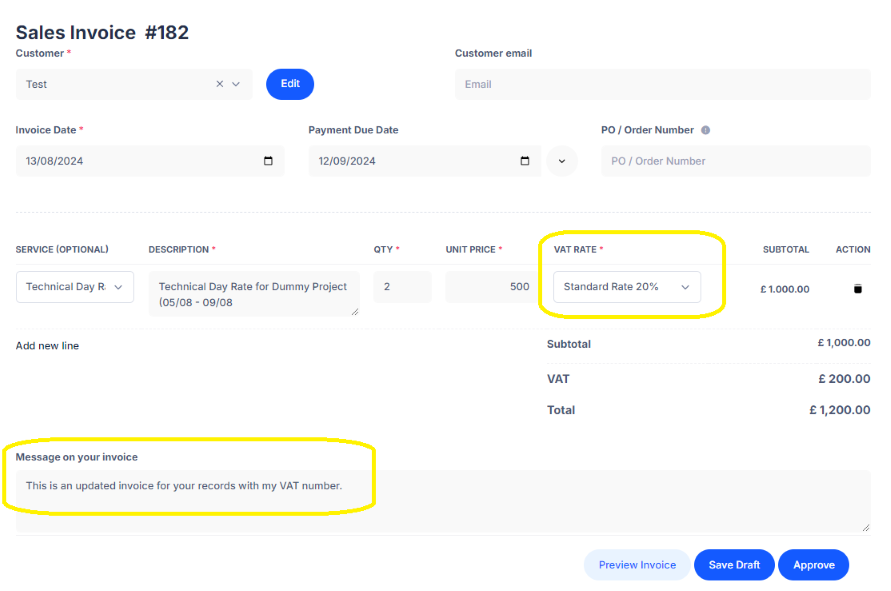
Simply navigate to the invoice you need to update, and click 'edit'. You can then update this to remove the separate line for VAT and instead update the VAT rate to standard 20%, as shown in the example below. Ultimately, the same amount is being charged to your client, but now you have charged VAT (and they can reclaim this also, if they're VAT registered). You may also want to update the message at the bottom too:
Invoicing without VAT and sending a VAT-only invoice once your number is received:
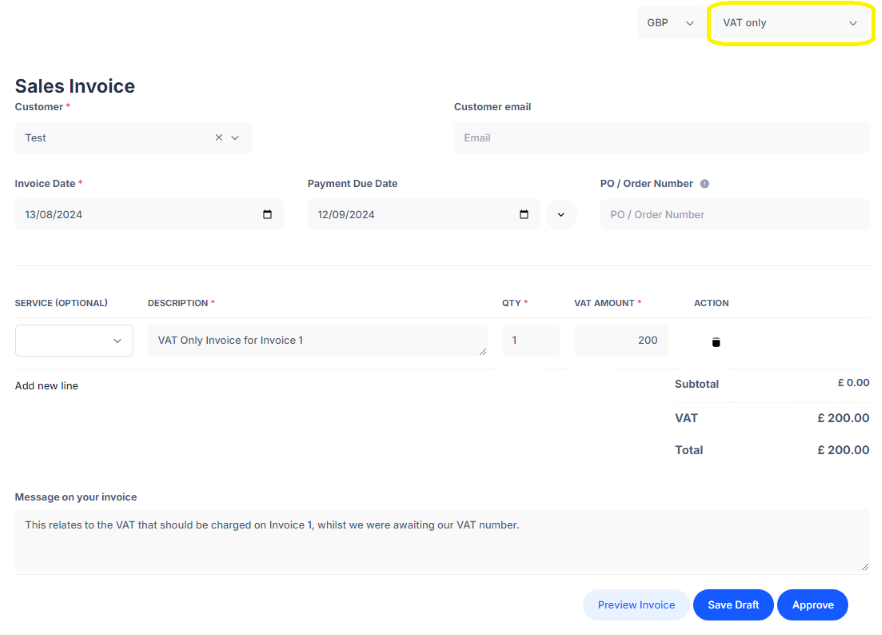
An alternative, but less recommended option, is to invoice your clients without any uplift for VAT initially. So, continuing on from the example above, this would involve invoicing your clients £1,000. Then once your VAT number is received, you would send a "VAT-only" invoice of £200.
This is covered in more detail within this article, but in short, it can be done by creating an invoice as normal, but selecting 'VAT Only' as seen within the yellow border below:
Waiting for your VAT number to invoice (not recommended!):
A final option would be to wait until you have your VAT number to invoice - but this wouldn't be recommended as it'll delay you getting paid!
What about claiming the VAT on expenses whilst I'm awaiting my VAT number?
You'll still be able to separate the VAT you incur on your expenses whilst you are awaiting your VAT number, so these will be automatically reclaimed in your first VAT return within Mighty. To do this, you can simply tick the below box which will appear under HMRC & Taxes within Mighty's settings:

This will effectively tell Mighty that you are becoming VAT registered, so that there will be a separate column/line in the bookkeeping and expenses section for you to record the VAT you incur on expenses. Please note - you can reclaim the VAT on services for up to 6 months prior to your VAT registration date and for goods for up to 4 years prior, so you can go back and update previous expenses where needed.
Hopefully the above makes sense, but please contact support@mightyaccounting.com if you have any questions.