

A 4-step guide to linking your PAYE scheme to your government gateway account

In order to file payroll in Mighty, you will first need to have a PAYE scheme set-up and ensure this PAYE scheme is linked to your HMRC government gateway account.
Not registered for PAYE? See our guide on how to register for PAYE here.
Step 1 - Check if Your PAYE Scheme is Already Linked to Your Government Gateway:
If you can see a section for PAYE when you log into your government gateway account, this will be linked so there's no need to read on!
If you can't see a PAYE section in your government gateway, you will need to follow steps 2-4.
Step 2 - Request an Activation Code:
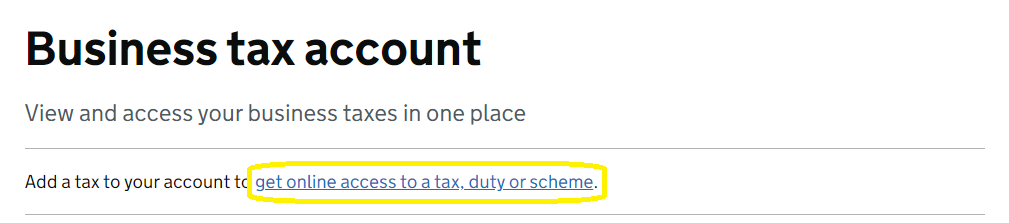
You'll firstly need your PAYE references, which if you've just recently registered, you may need to wait for them to arrive in the post. However, once you have these, you can login to your Government Gateway account and click 'get online access to a tax, duty or scheme', as shown in the yellow border below:
Here, you'll be asked the following:
- What do you want to add? You can select "Employers or intermediaries, for example employers or CIS"
- Which employer tax or scheme do you need? Here, you can select "PAYE for Employers"
- Do you have an employer PAYE reference? Here, you can select yes (unless you haven't previously registered for PAYE/filed payroll, in which case you'll need to register by following the steps here first).
The next screen will ask you for your office number, PAYE reference and accounts office reference. Please let us know if you're unsure of these, but to note on the 'office number' and 'employer PAYE reference':
- HMRC Office Number: this is effectively the first part of your PAYE reference. So if your PAYE reference was 123/A4567, you would enter '123'
- Employer PAYE Reference: This is the second part of your PAYE reference, so using the above example, it would be 'A4567'.
Once you click 'request access', this will then trigger a 12-digit activation code to be sent to you in the post by HMRC, which can take up to 10 days.
Step 3 - Enter Activation Code:
Once you receive this activation code, you'll be able to log in and enter this into your Government Gateway account and be able to view your PAYE scheme whenever you login.
Step 4 - Enter Your Government Gateway Credentials to Mighty:
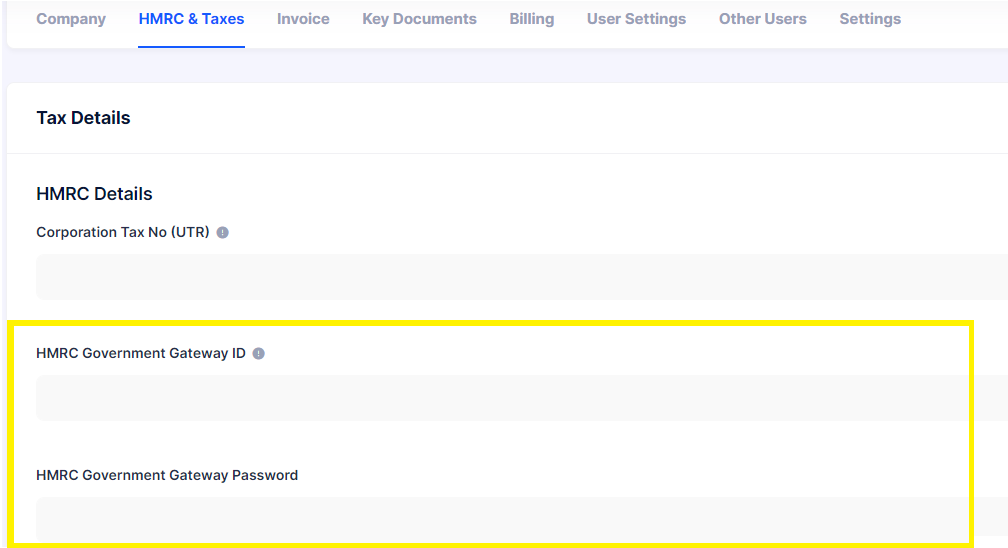
If you've not done this already, you'll need to add in your government gateway ID and password (the latter of which is encrypted) into the HMRC & Taxes section of your company settings (which you can access my clicking the button in the top right hand corner):
You'll now be able to file payroll via Mighty - but don't worry, you'll just need to let us know that you've completed these steps and we'll set-up (and file) your payroll for you!
If you have any questions with payroll, please contact our support team (support@mightyaccounting.com).